Use your phone for account registration
Follow the steps below to register your community account.
Step 1
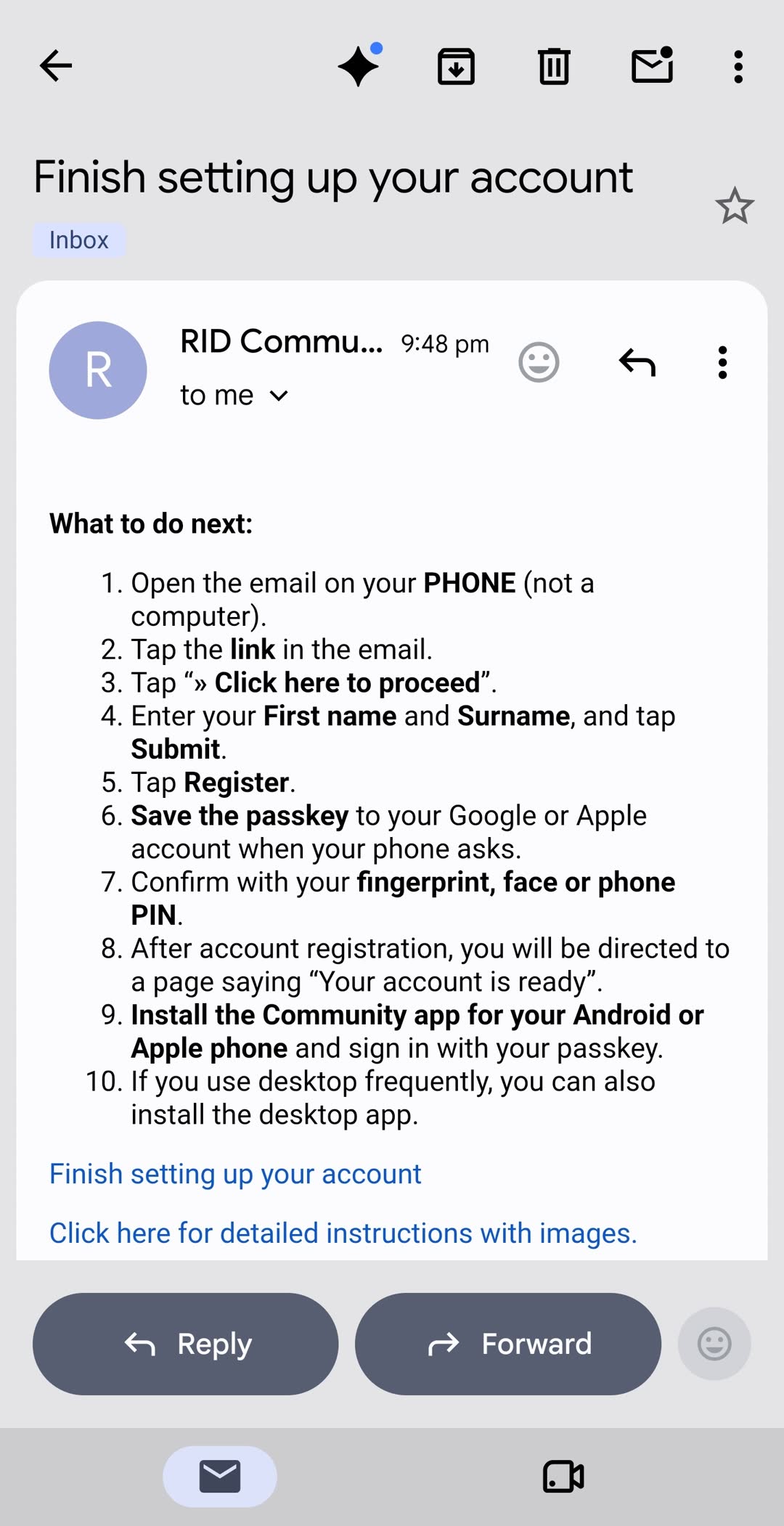
Check the email on your phone (not a computer)
Look for the message that was just sent.
If it does not show up in a few minutes, check your spam folder.
Step 2
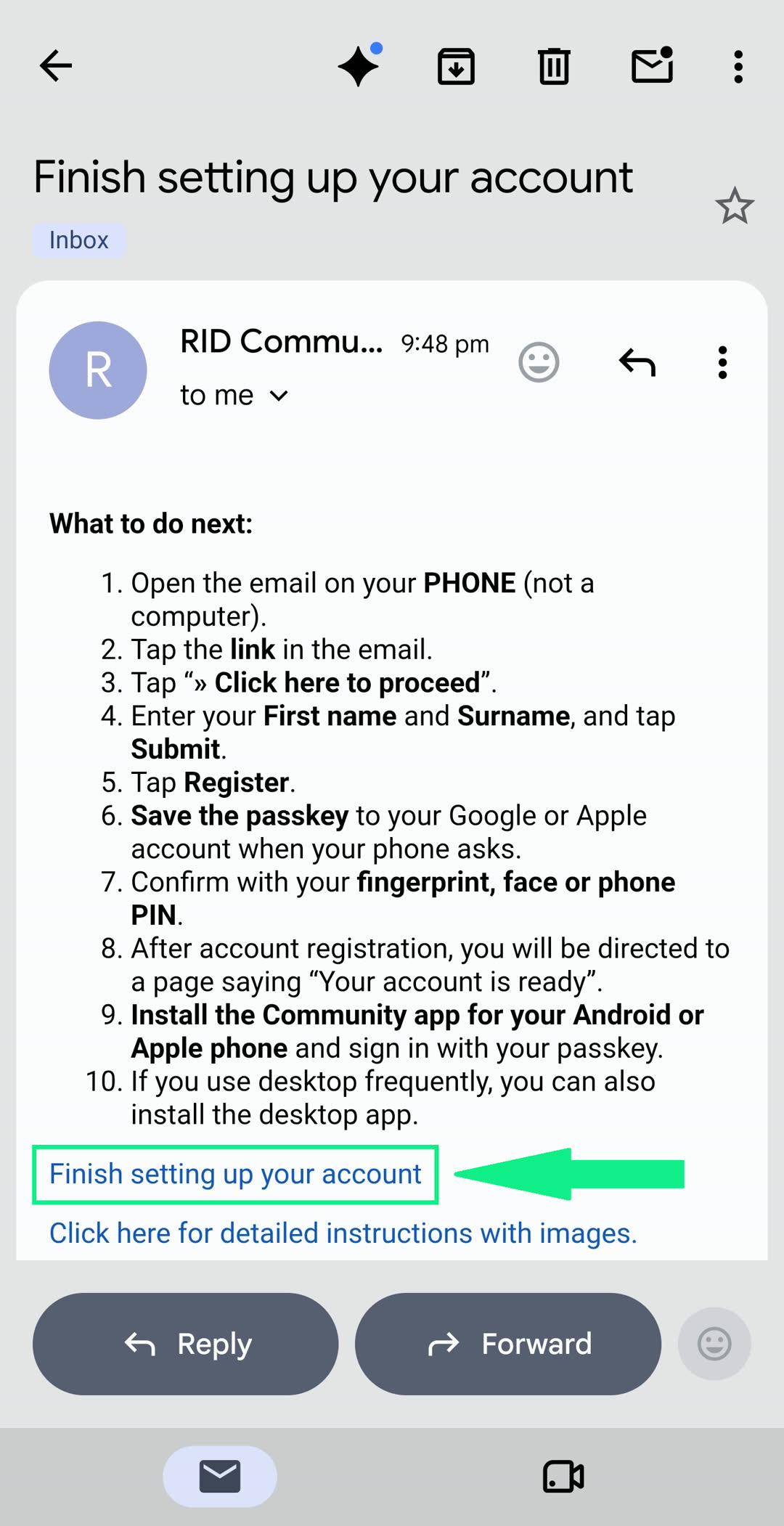
Tap the link in the email
Step 3
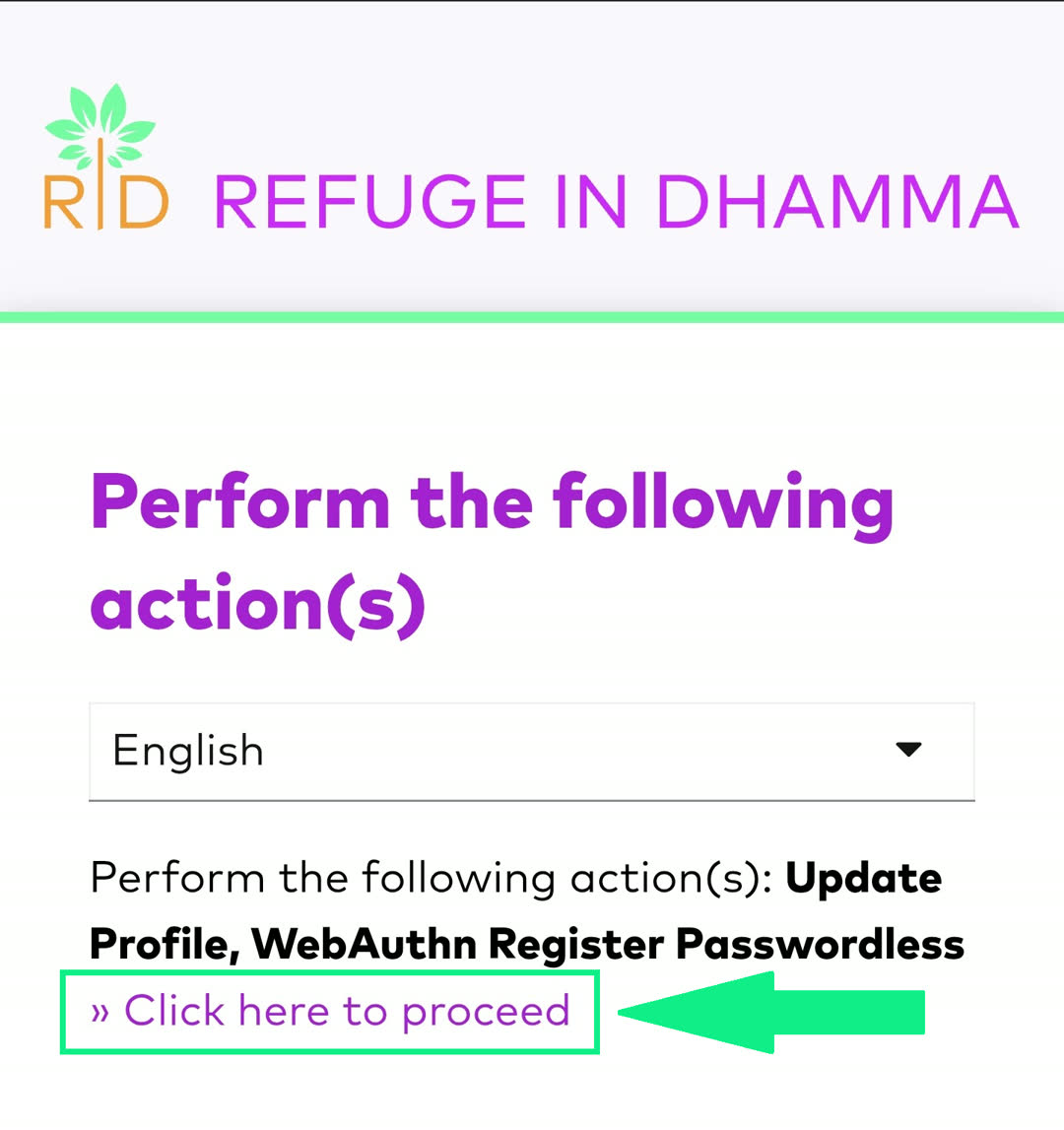
Tap “Click here to proceed”
Step 4
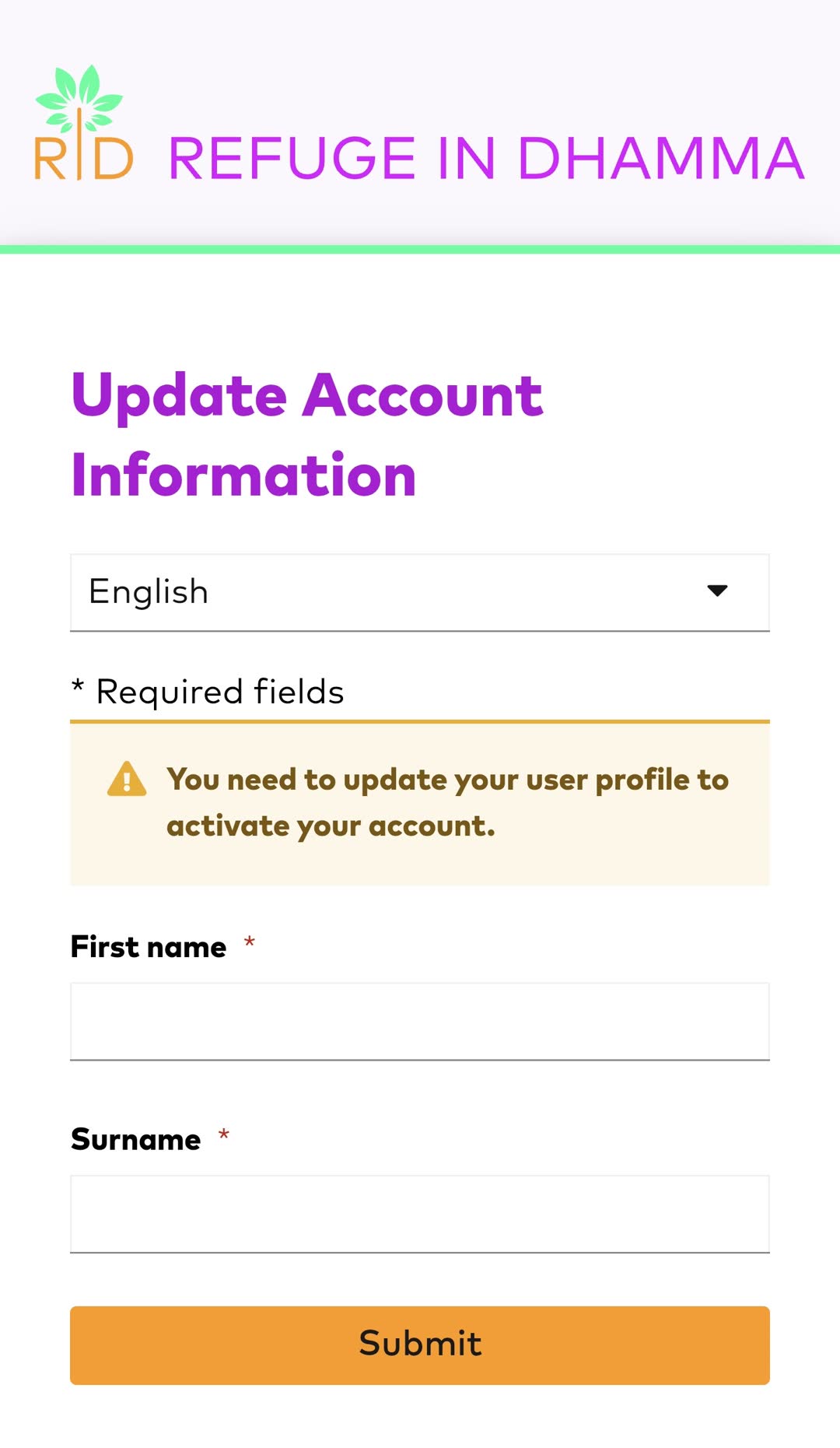
Enter your first name and surname, then tap “Submit”
Step 5
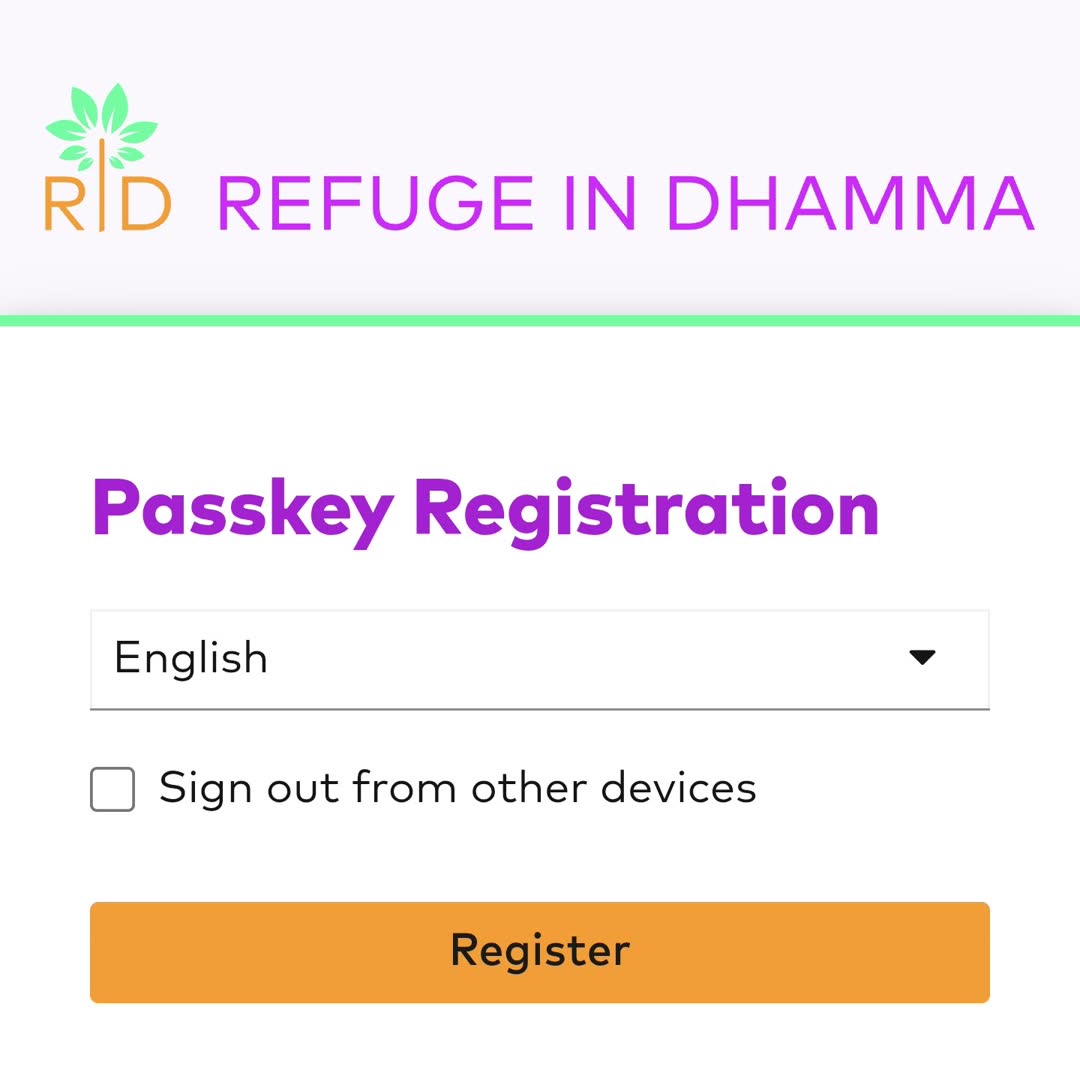
Tap “Register”
Step 6
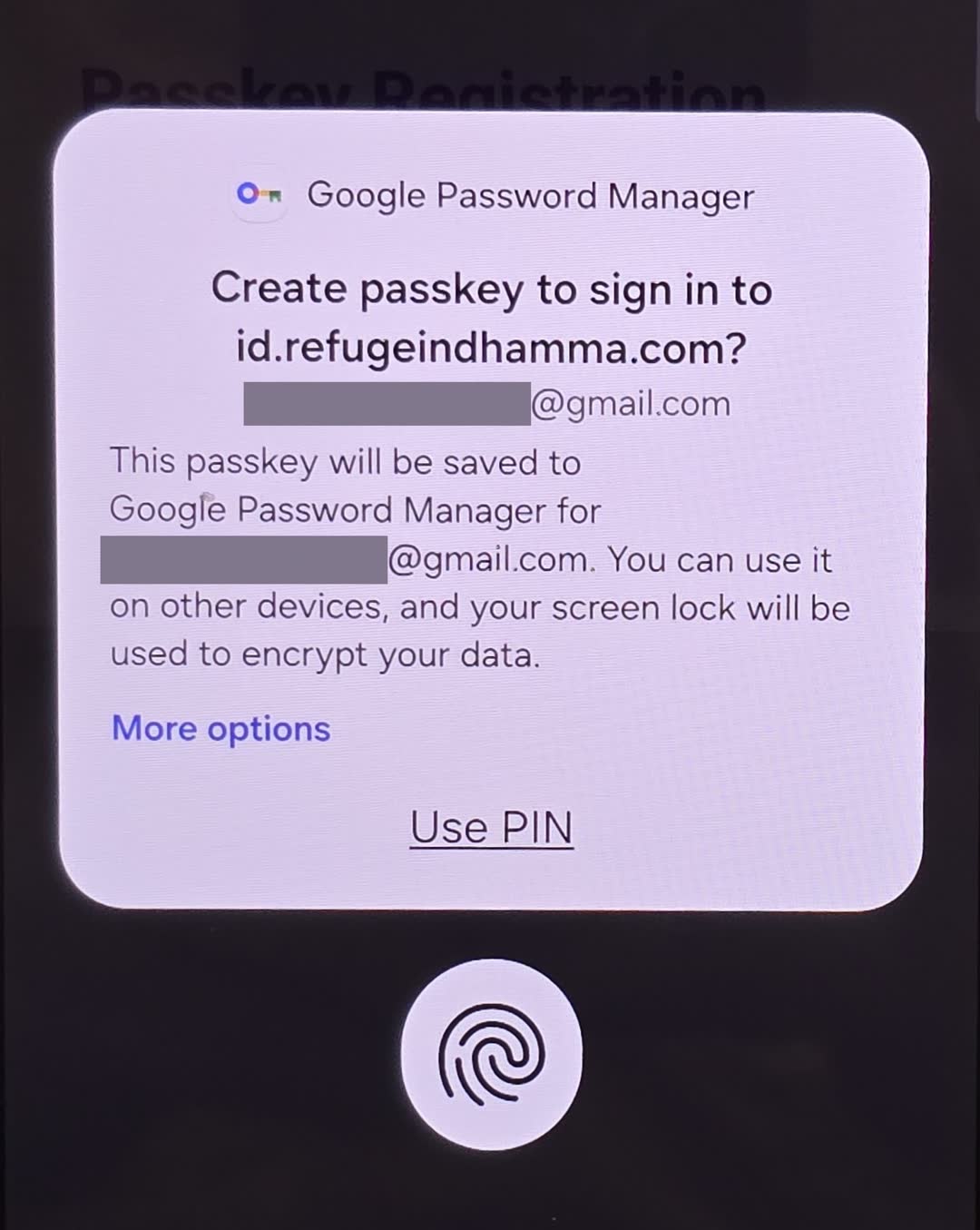
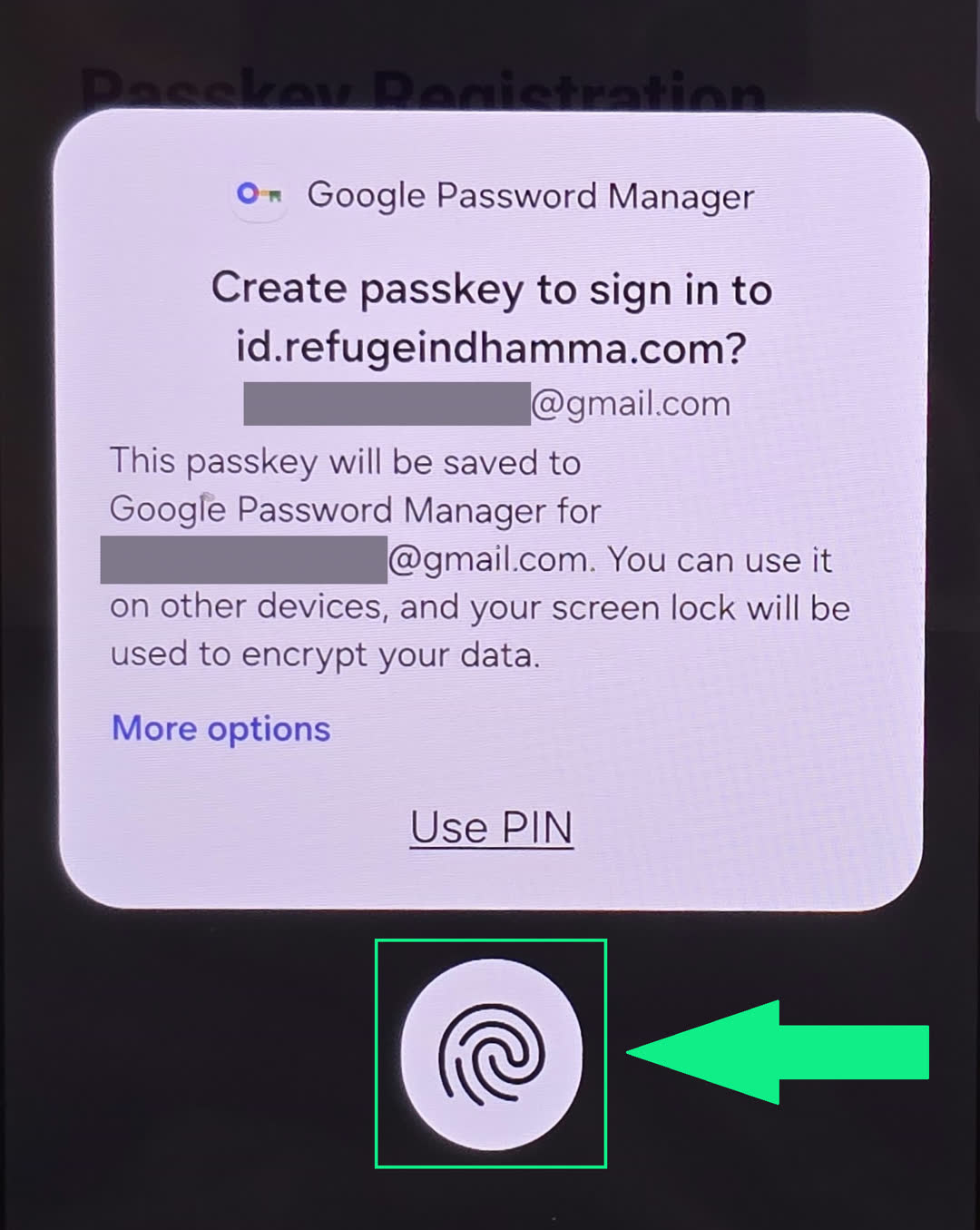
Save the passkey when your phone asks
It will automatically save to your Google or Apple account so you can easily sign in from your other devices later.
Step 7
Confirm with your fingerprint, face or phone PIN
Step 8
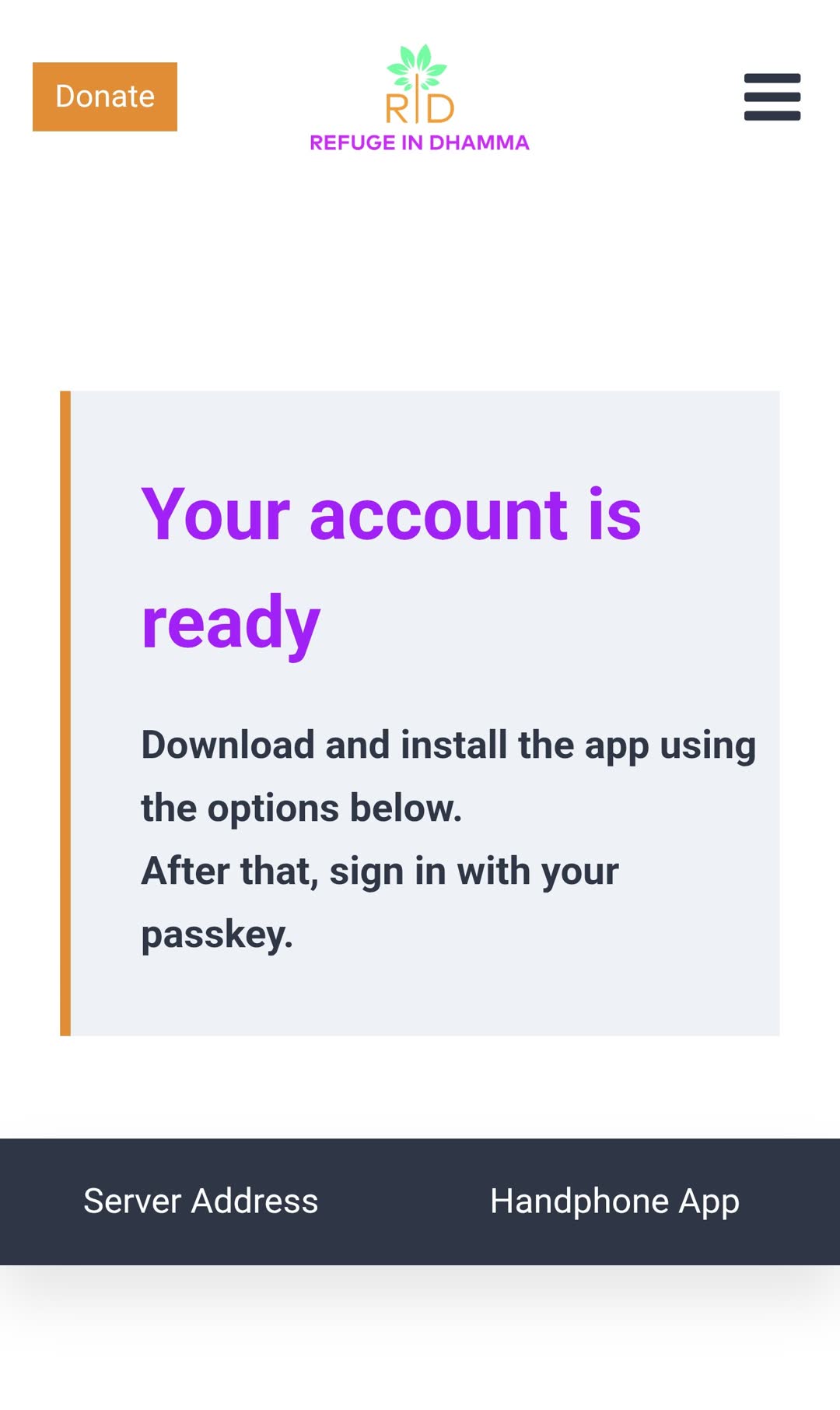
Your account is ready
Seeing this screen means your account registration has successfully completed.
Step 9
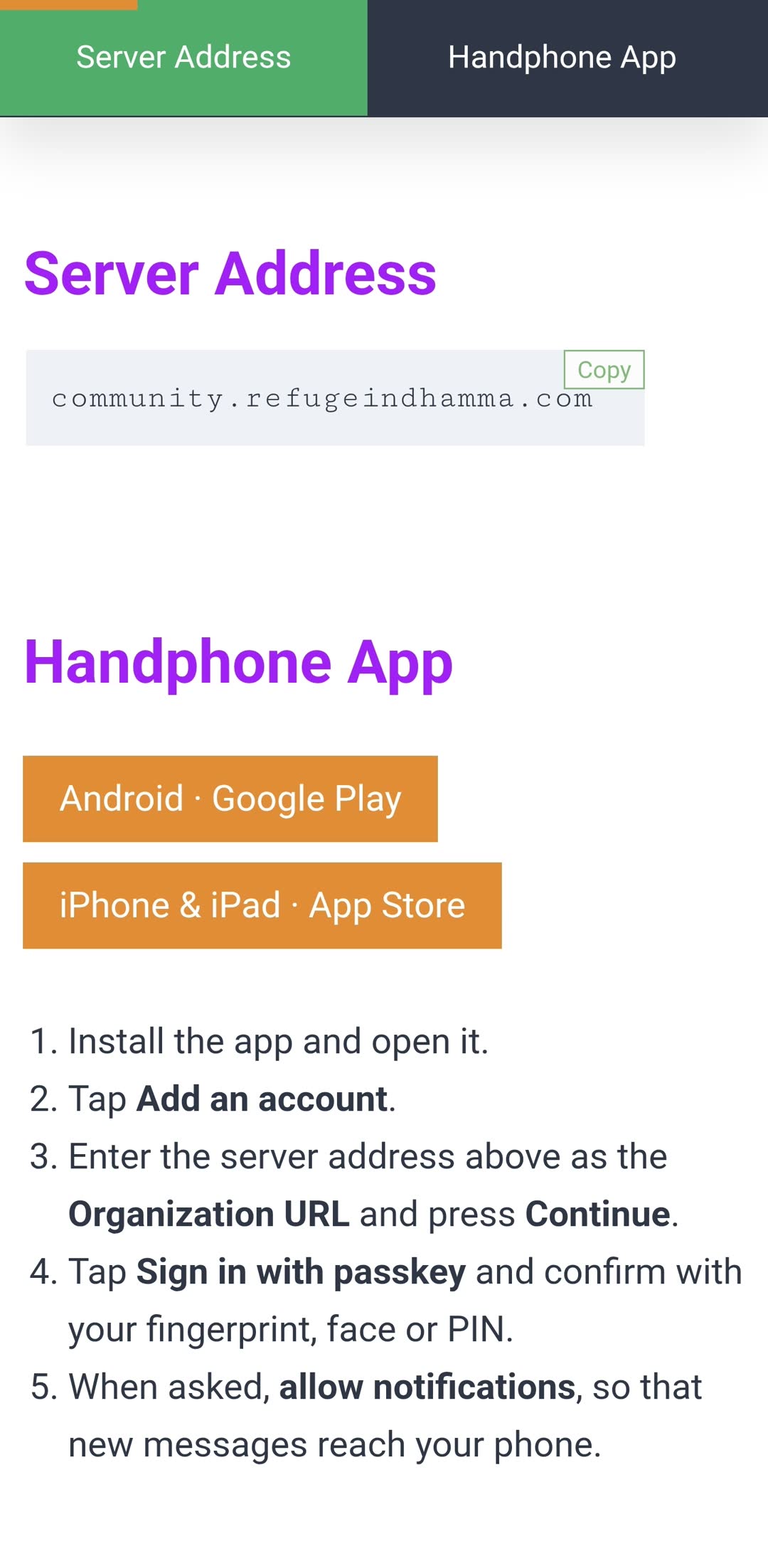
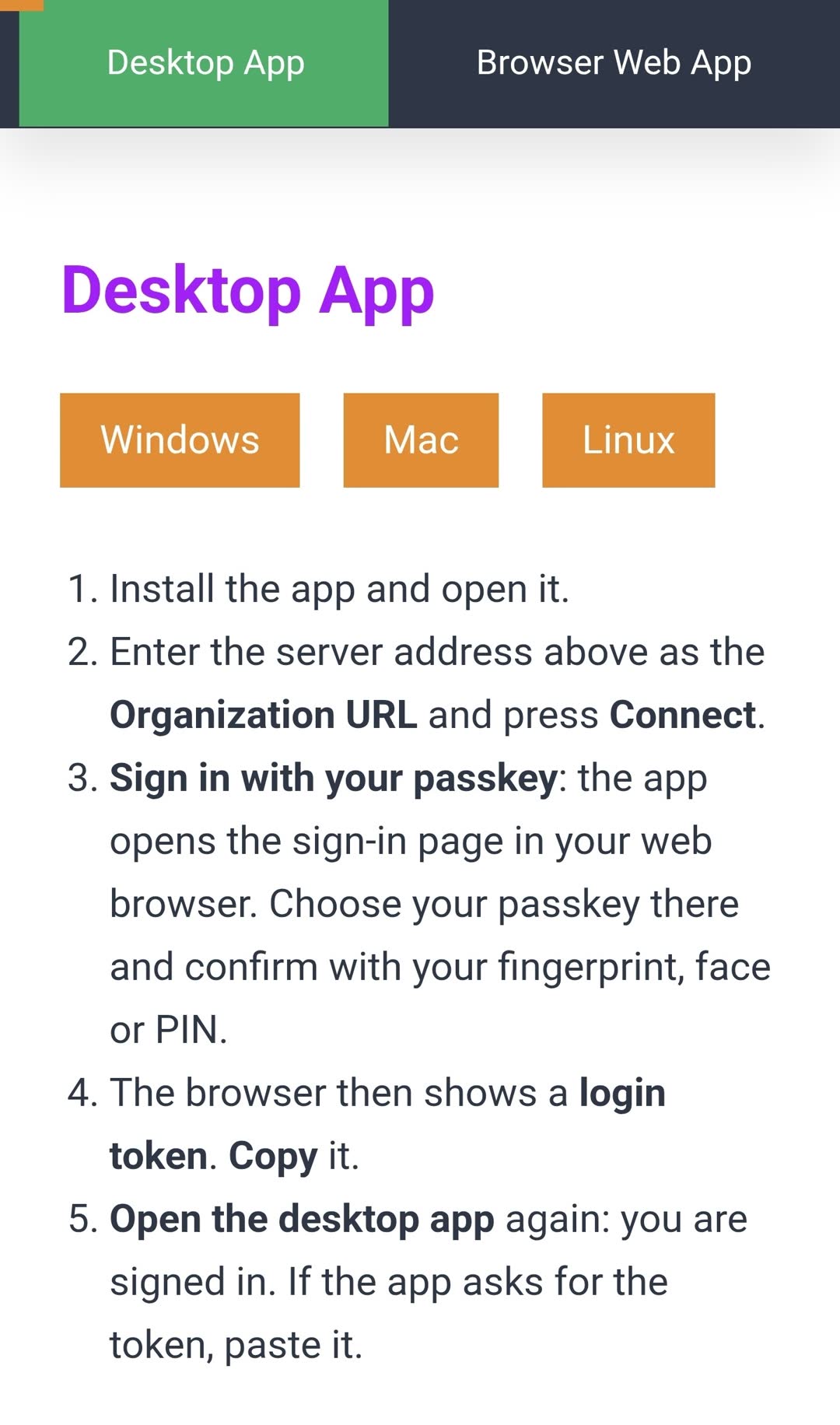
Install the Community App
Download the app to your phone and sign in with your passkey.
👉 Get the Server Address & App →